
Video editing can take hours when you’re manually cutting pauses, removing filler words, adding captions, cleaning audio, and creating different versions for YouTube, Shorts, or social media. AI video editing tools can automate many of these repetitive tasks, helping content creators spend less time on editing and more time creating.
But the best AI video editing tool depends on what you actually make. A YouTuber editing long-form videos may need different features than a creator making Reels, a podcaster turning episodes into clips, or a beginner creating their first social video.
In this guide, we’ll compare the best AI video editing tools for content creators in 2026 based on their AI capabilities, ease of use, free plans, limitations, and the workflows they are best suited for.
The goal isn’t to find the tool with the most AI features. It’s to help you choose the one that solves your biggest editing problem.
What Is an AI Video Editor?
An AI video editor is video editing software that uses artificial intelligence to automate or speed up tasks such as cutting footage, removing pauses, generating captions, improving audio, creating clips, and adapting videos for different formats.
Unlike traditional editors, AI video editors can analyze your footage and perform certain editing tasks automatically, helping creators spend less time on repetitive work.
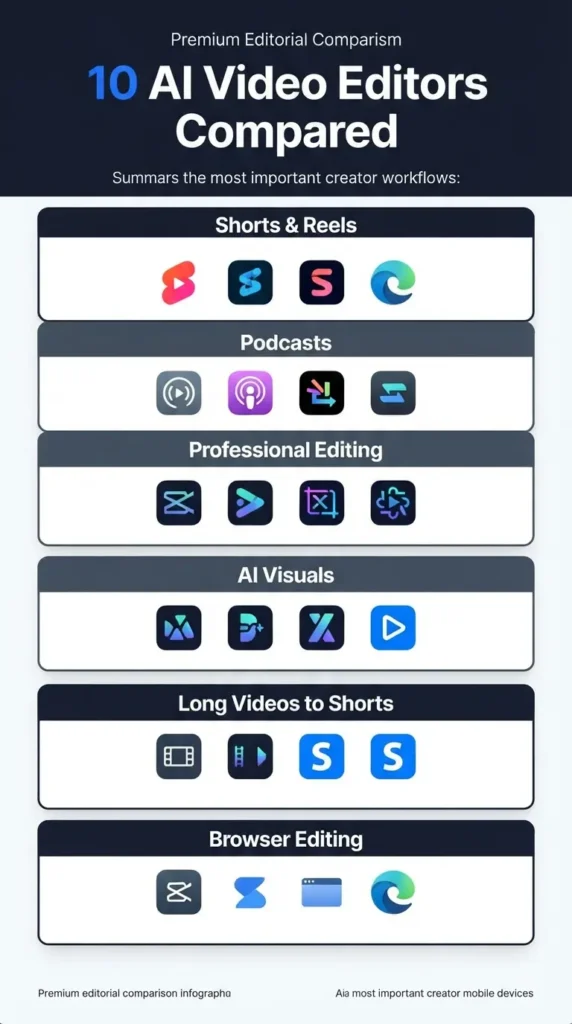
Best AI Video Editing Tools at a Glance
Not every AI video editor is designed for the same type of content. Some are built for quick social videos, while others focus on professional editing, podcast workflows, or turning long videos into Shorts.
| AI Video Editor | Best For | Main AI Strength | Free Option | Skill Level |
| CapCut | Shorts, Reels & social videos | AI-assisted editing | Yes | Beginner |
| Descript | YouTube, podcasts & talking-head videos | Text-based editing | Yes | Beginner |
| Adobe Premiere Pro | Professional video production | AI-assisted editing | Trial | Advanced |
| Runway | AI-generated visuals | Generative video tools | Limited | Intermediate |
| OpusClip | Turning long videos into Shorts | Automatic clip creation | Yes | Beginner |
| VEED | Browser-based social content | AI editing & captions | Yes | Beginner |
| Filmora | Easy desktop editing | AI-assisted editing | Limited | Beginner |
| Canva | Simple social videos | AI creation & editing | Yes | Beginner |
| Kapwing | Social and team content | AI-assisted workflows | Yes | Beginner |
| DaVinci Resolve | Advanced video editing | AI-assisted workflows | Yes | Advanced |
Quick picks
- Best for Shorts and Reels: CapCut
- Best for talking-head videos and podcasts: Descript
- Best for professional editing: Adobe Premiere Pro
- Best for AI-generated visuals: Runway
- Best for turning long videos into Shorts: OpusClip
- Best for beginners: CapCut or Canva
- Best for advanced creators on a budget: DaVinci Resolve
Note: Free plans, AI credits, export limits, and pricing can change frequently. We’ll verify these details before publication rather than treating a “free” label as unlimited access.
How We Chose These AI Video Editors
There are dozens of AI-powered video tools, but they don’t all solve the same editing problems. We selected these tools based on how useful their AI features are in a real content-creation workflow—not simply how many features they advertise.
We looked at each tool across the following areas:
- AI editing capabilities: How effectively AI can automate or simplify editing tasks.
- Ease of use: How quickly a beginner can understand and use the editor.
- Automation: Whether the tool can handle repetitive work such as captions, silence removal, clipping, or reframing.
- Editing control: How much control creators have when they need to make manual adjustments.
- Captions and transcription: The quality and usefulness of automatic transcripts and subtitles.
- Audio enhancement: Features for cleaning, improving, or modifying recorded audio.
- Repurposing: How easily a creator can turn existing content into Shorts, Reels, or other formats.
- Free-plan limitations: What you can actually use without paying, including important restrictions.
- Creator workflow: Which type of content the tool is best suited for, such as YouTube videos, podcasts, Shorts, or social media.
- Overall value: Whether the combination of features, usability, limitations, and pricing makes sense for its target user.
One important distinction matters throughout this guide: a tool doesn’t need to be a traditional video editor to be useful for AI video editing. Some specialize in one part of the workflow, such as automatically finding short clips from a long video, while others provide a complete editing environment with AI features.
Our goal is therefore not to identify the tool with the longest feature list. It’s to help you find the AI video editor that best matches your content, skill level, and editing workflow.
10 Best AI Video Editing Tools for Content Creators
The best AI video editor depends on what you create and which part of your workflow takes the most time. Some tools are designed for quick social videos, while others are better for podcasts, long-form YouTube content, professional editing, or turning existing videos into Shorts.
Below, we’ve compared 10 AI video editing tools based on their AI capabilities, ease of use, editing control, free options, limitations, and the type of creator workflow they’re best suited for ai video editing.
1. CapCut — Best for Short-Form Content
Best for: YouTube Shorts, TikTok, Reels, and social videos
Skill level: Beginner
Main strength: Fast AI-assisted editing
10 Best AI Video Editors for YouTube in 2026
CapCut is a strong choice for creators who want to produce short-form videos quickly without learning a complicated professional editor. Its AI-assisted workflow can help with captions, background removal, video enhancement, effects, and other repetitive editing tasks.
Key AI features: Automatic captions, background removal, AI-assisted effects, text-to-speech, video enhancement, and tools for adapting content to social formats.
Why choose it: CapCut works particularly well for a workflow like record → edit → caption → format → publish. It’s a good fit when speed and simplicity matter more than advanced post-production control.
Free plan: CapCut offers free editing features, although specific AI tools, templates, exports, and usage limits can vary by plan and region.
Main limitation: It isn’t the best choice for complex professional projects requiring extensive timeline control, advanced color work, or sophisticated post-production.
Choose CapCut if: You mainly create Shorts, Reels, TikToks, or other social videos and want a beginner-friendly workflow.
Skip it if: You need professional-level editing control for complex long-form projects.
2. Descript — Best for Talking-Head Videos and Podcasts
Quick verdict: Descript is ideal for creators who work mainly with spoken content and want to edit videos through text instead of relying entirely on a traditional timeline.
Key Features
- Transcript editing: Edit the written transcript to quickly cut corresponding parts of the video.
- Filler-word removal: Helps remove words such as “um” and “uh” without manually searching through the timeline.
- Captions: Automatically creates subtitles, saving creators from manually transcribing and timing dialogue.
- Audio enhancement: Helps improve recorded voice quality when the original audio needs cleanup.
- Screen recording: Useful for tutorials, software demonstrations, and educational videos.
- AI-assisted cleanup: Speeds up repetitive edits that would otherwise take more manual work.
What Descript Is Best At
Descript is particularly useful for podcasts, interviews, tutorials, and talking-head videos, where the spoken content is the main part of the video. A creator can record, edit the transcript, clean up the audio, add captions, and prepare the content without constantly navigating a traditional video timeline.
Pros and Cons
Pros: Excellent transcript-based workflow, strong for spoken content, useful AI cleanup, captions and screen recording.
Cons: Not the best choice for complex visual editing, advanced effects, or detailed professional post-production.
Free Plan
Descript has a free option, but transcription, exports, and AI usage are limited. Check the current plan before publishing because allowances can change.
Who Should Use Descript?
Choose it if you create podcasts, interviews, tutorials, screen recordings, or talking-head YouTube videos and want to reduce repetitive editing work.
Who Should Choose Another Tool?
Choose a more traditional professional editor if you need advanced visual effects, detailed color grading, motion graphics, or extensive timeline control.
3. Adobe Premiere Pro — Best for Professional Editing
Quick verdict: Premiere Pro combines advanced editing control with AI-assisted tools, making it a strong choice for professional creators.
Best for: Professional YouTube videos and complex projects
Skill level: Advanced
Main strength: Professional editing control
Key AI Features
AI-assisted transcription, text-based editing, captions, audio enhancement, and other workflow tools can reduce repetitive post-production work.
What Premiere Pro Is Best At
Its biggest advantage is advanced timeline editing. Creators can precisely control multiple video and audio tracks, effects, transitions, and other elements while using AI to speed up routine tasks.
Pros and Cons
Pros: Professional control, advanced timeline, AI-assisted workflows.
Cons: Steeper learning curve and paid subscription.
Free Plan
Premiere Pro offers a trial rather than a permanent free plan.
Who Should Use Premiere Pro?
Professional YouTubers and advanced creators who need precise editing control.
Who Should Choose Another Tool?
For easier social editing, choose CapCut. For advanced editing with a strong free option, consider DaVinci Resolve.
4. Runway — Best for AI-Generated Visuals
Quick verdict: Runway is best for creators who want to add generative AI to their video workflow, especially when they need visuals that are difficult to create with traditional editing tools.
Best for: AI-generated visuals and creative video projects
Skill level: Intermediate
Main strength: Generative video and visual effects
Key AI Features
Runway focuses on AI-powered video generation and transformation, including text-to-video, image-to-video, background manipulation, and generative visual effects.
What Runway Is Best At
Unlike a traditional editor, Runway can help create new visual content, not just edit footage you already have. A creator might generate a scene, transform an image into video, or create supporting visuals and then combine them with existing footage.
Pros and Cons
Pros: Powerful generative AI, creative visual workflows, useful for experimental content.
Cons: Less suitable as a complete replacement for professional timeline editors.
Free Plan
Runway offers limited access through its free option, with usage or credit restrictions depending on the current plan.
Who Should Use Runway?
Creators who want AI-generated visuals for YouTube videos, social content, creative projects, or visual storytelling.
Who Should Choose Another Tool?
If you mainly need traditional editing, CapCut is simpler for social videos, while Premiere Pro or DaVinci Resolve offers deeper timeline control.
5. OpusClip — Best for Turning Long Videos Into Shorts
Quick verdict: OpusClip is designed to turn long-form videos into multiple short clips with less manual editing.
Best for: YouTube videos, podcasts, webinars, and interviews
Skill level: Beginner
Main strength: Automated video repurposing
Key AI Features
OpusClip uses AI to help with clip selection, automatic reframing, captions, and social-ready formatting. Instead of manually searching through a long recording, creators can let AI identify potential short clips and then review the results.
What OpusClip Is Best At
Its strongest workflow is simple:
One long video → multiple short clips → ready for social platforms.
This makes it useful for creators who already publish long-form content and want to get more content from the same recording without editing every Short from scratch.
Pros and Cons
Pros: Fast repurposing, automatic clip selection, captions, social formatting.
Cons: AI-selected clips may still need human review and editing.
Free Plan
OpusClip offers a free option, but usage and export limits apply.
Who Should Use OpusClip?
YouTubers, podcasters, and other creators who want to turn existing long videos into Shorts, Reels, or other short-form content.
Who Should Choose Another Tool?
If you want to manually create and customize short-form videos, CapCut may offer more direct editing control.
6. VEED — Best for Browser-Based Social Video Editing
Quick verdict: VEED is a beginner-friendly online video editor that combines browser-based editing with AI tools for creating social content.
Best for: Social videos, captions, and quick online editing
Skill level: Beginner
Main strength: Easy browser-based workflow
Key AI Features
VEED includes AI tools for automatic captions, transcription, audio cleanup, background removal, and other editing tasks that can speed up social content creation.
What VEED Is Best At
VEED is useful when you want to edit and publish videos without installing desktop software. Its browser workflow is especially convenient for creators making quick social videos and captions.
Pros and Cons
Pros: Browser-based, beginner-friendly, useful captions and AI tools.
Cons: Less suitable for complex professional editing.
Free Plan
VEED offers a free option, but exports and some AI features may have limitations.
Who Should Use VEED?
Beginners and social media creators who want quick, browser-based video editing with AI assistance.
Who Should Choose Another Tool?
For a more social-first editing workflow, choose CapCut. For advanced professional editing, consider Premiere Pro or DaVinci Resolve.
7. Filmora — Best for Easy Desktop Editing
Quick verdict: Filmora is a good middle ground for creators who want desktop editing with useful AI features without the complexity of a professional editor.
Best for: Beginner desktop video editing
Skill level: Beginner
Main strength: Simple editing with AI assistance
Key AI Features
Filmora combines AI-assisted tools with templates, effects, automatic captions, audio tools, and other editing features designed to reduce manual work.
What Filmora Is Best At
Filmora is strongest for creators who want a traditional desktop editor that remains easy to learn. Its templates and effects can also help beginners produce polished videos without building every element from scratch.
Pros and Cons
Pros: Beginner-friendly, desktop workflow, AI-assisted tools, templates and effects.
Cons: Less powerful than professional editors for complex projects.
Free Plan
Filmora can be used with a free option or trial depending on the current offering, but exports may include limitations such as watermarks.
Who Should Use Filmora?
Creators who want more editing control than simple social editors while still keeping the learning curve manageable.
Who Should Choose Another Tool?
For quick Shorts and social videos, CapCut may be simpler. For professional-level editing, choose Premiere Pro or DaVinci Resolve.
8. Canva — Best for Simple Social Videos
Quick verdict: Canva is a practical choice for creators who already use it for graphics, thumbnails, presentations, or social posts and want to add simple video editing to the same workflow.
Best for: Social videos, graphics, thumbnails, and simple content
Skill level: Beginner
Main strength: Combining video with other content creation
Key AI Features
Canva offers AI-assisted tools alongside templates, captions, effects, background tools, and content creation features, making it possible to create different types of content within one platform.
What Canva Is Best At
Canva makes the most sense when video is one part of a broader content workflow. A creator can design a thumbnail, social graphic, presentation, and simple video without switching between multiple platforms.
Pros and Cons
Pros: Easy to use, large template library, useful for multiple content formats.
Cons: Not designed for advanced video editing or complex post-production.
Free Plan
Canva offers a free plan with access to many design and video features, while some AI tools, assets, and advanced features require a paid plan.
Who Should Use Canva?
Creators who already use Canva and want to create simple videos alongside their graphics, thumbnails, presentations, and social content.
Who Should Choose Another Tool?
For dedicated short-form video editing, CapCut offers a more video-focused workflow. For advanced editing, consider Premiere Pro or DaVinci Resolve.
9. Kapwing — Best for Collaborative Content
Quick verdict: Kapwing is a browser-based video platform that works well for creators and teams who need to create, edit, and review social content together.
Best for: Team-based social content and online editing
Skill level: Beginner
Main strength: Collaborative browser workflow
Key AI Features
Kapwing combines AI-assisted video creation, editing, captions, transcription, resizing, and other content tools to speed up social media production.
What Kapwing Is Best At
Its biggest advantage is the combination of browser editing and collaboration. Teams can work on content without installing desktop software, making it useful when multiple people need to create, edit, or review the same social videos.
Pros and Cons
Pros: Browser-based, collaborative, useful AI tools, strong social workflow.
Cons: Not designed for advanced professional post-production.
Free Plan
Kapwing offers a free option, but exports, AI usage, and other features may have limitations.
Who Should Use Kapwing?
Small teams, social media creators, and marketers who want AI-assisted video creation with an easy collaborative workflow.
Who Should Choose Another Tool?
Solo creators focused mainly on Shorts may prefer CapCut. For professional editing control, Premiere Pro or DaVinci Resolve is a better fit.
10. DaVinci Resolve — Best for Advanced Creators on a Budget
Quick verdict: DaVinci Resolve is a powerful choice for creators who want professional-level editing without paying for a traditional premium editor.
Best for: Advanced creators, YouTubers, and professional video projects
Skill level: Advanced
Main strength: Professional editing with a strong free version
Key AI Features
Resolve includes AI-assisted tools for editing, audio, color, effects, and other post-production tasks, helping experienced creators speed up parts of their workflow.
What DaVinci Resolve Is Best At
Its biggest advantage is the combination of professional control and a capable free version. You can get advanced editing, color correction, visual effects, and audio tools without starting with a paid subscription.
But free doesn’t mean beginner-friendly. Resolve has a steeper learning curve than tools such as CapCut or Canva.
Pros and Cons
Pros: Powerful free version, professional editing, advanced color and audio tools.
Cons: Steep learning curve and more complex workflow for beginners.
Free Plan
DaVinci Resolve has a free version with substantial editing capabilities. Some advanced features are reserved for the paid Studio version.
Who Should Use DaVinci Resolve?
Creators who want professional editing capabilities without paying for a subscription and are willing to spend time learning the software.
Who Should Choose Another Tool?
If you want a simpler beginner workflow, choose CapCut or Filmora. If you prefer Adobe’s professional ecosystem, Premiere Pro is the better fit.
If you want to edit videos without paying for expensive software, check out our guide to free AI video editors.
Which AI Video Editor Is Best for Your Content?
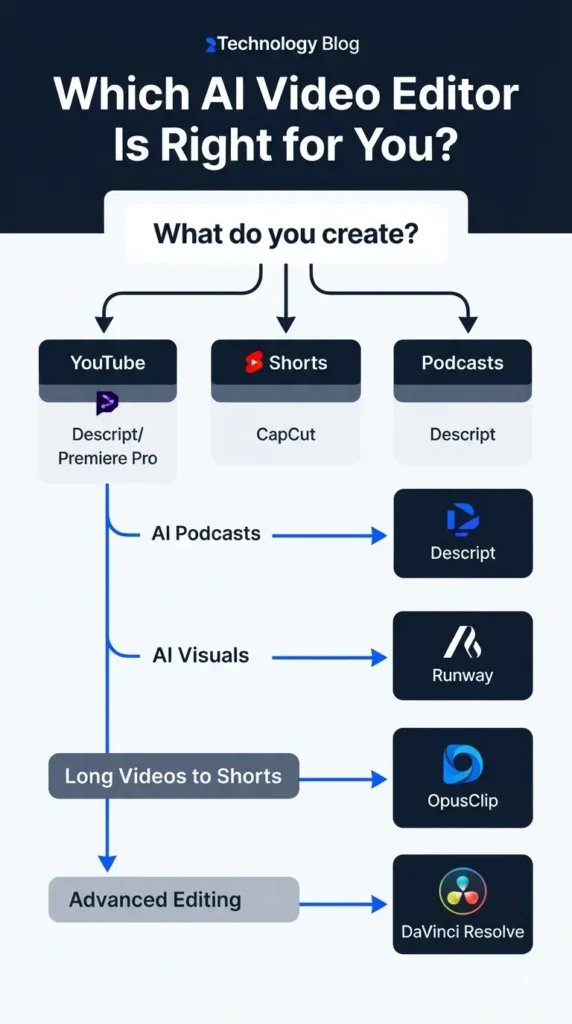
The best AI video editor depends on what you create and how you work. Use these quick recommendations to narrow down the options:
If you make YouTube videos
Descript / Premiere Pro — Descript is better for talking-head content and podcasts, while Premiere Pro gives you more professional editing control.
Best Free AI Tools for YouTube Creators (2026): Create Videos Faster Without Paying
If you make Shorts and Reels
CapCut — Best suited to fast, social-first video editing.
If you repurpose long videos
OpusClip — Designed to find and turn useful sections of long videos into short-form content.
If you make podcasts
Descript — Its transcript-based workflow makes editing spoken content much easier.
If you need AI-generated visuals
Runway — Better suited to creators who want generative AI as part of their video workflow.
If you’re a beginner
CapCut / Canva — Both are easier to start with than professional editors such as Premiere Pro or DaVinci Resolve.
If you want professional control
Premiere Pro / DaVinci Resolve — Better choices when detailed editing and post-production control matter.
If you want browser-based editing
VEED / Kapwing — Both let you create and edit videos online without relying on a traditional desktop workflow.
15 Best AI Tools for Content Creators in 2026 to Create Content Faster
Best Free AI Video Editing Tools
If you want to edit videos without paying, don’t look only at whether an editor has a “free plan.” The important question is what you can actually export and use for free.
Among the tools in this guide, these are the strongest free options to consider:
DaVinci Resolve — Best Free Option for Advanced Editing
DaVinci Resolve has one of the strongest free versions for creators who want professional editing, color correction, audio, and visual effects. The main trade-off is its steep learning curve, and some advanced features are reserved for the paid Studio version.
Best for: Advanced creators who want professional editing without a subscription.
CapCut — Best Free Option for Short-Form Content
CapCut is a practical free choice for Shorts, Reels, and other social videos. You can access many editing and AI-assisted features without paying, although some tools, assets, and capabilities may be limited by plan, region, or usage.
Best for: Beginners and social media creators.
Canva — Best Free Option for Simple Videos
Canva’s free plan works well for basic social videos, templates, graphics, and simple editing. However, premium templates, assets, and some AI features require a paid plan.
Best for: Creators who already use Canva for graphics and social content.
What to Check Before Choosing a Free AI Video Editor
A “free” editor may still have restrictions such as:
- Watermarks: Some free exports may include branding.
- Export limits: Resolution, format, or export frequency may be restricted.
- AI credits: Generative and advanced AI features may use limited credits.
- Premium features: Certain AI tools, templates, effects, or assets may require payment.
- Usage limits: Free plans can restrict transcription, storage, processing, or monthly usage.
Bottom line: If you want the most powerful free editing environment, start with DaVinci Resolve. For easier short-form editing, CapCut is a better fit, while Canva works well for simple videos and broader content creation.
If you want to edit videos without paying for expensive software, check out our guide to free AI video editors.
Best Free AI Video Generators 2026 (Viral TikTok & YouTube)
What Can AI Video Editors Actually Do?
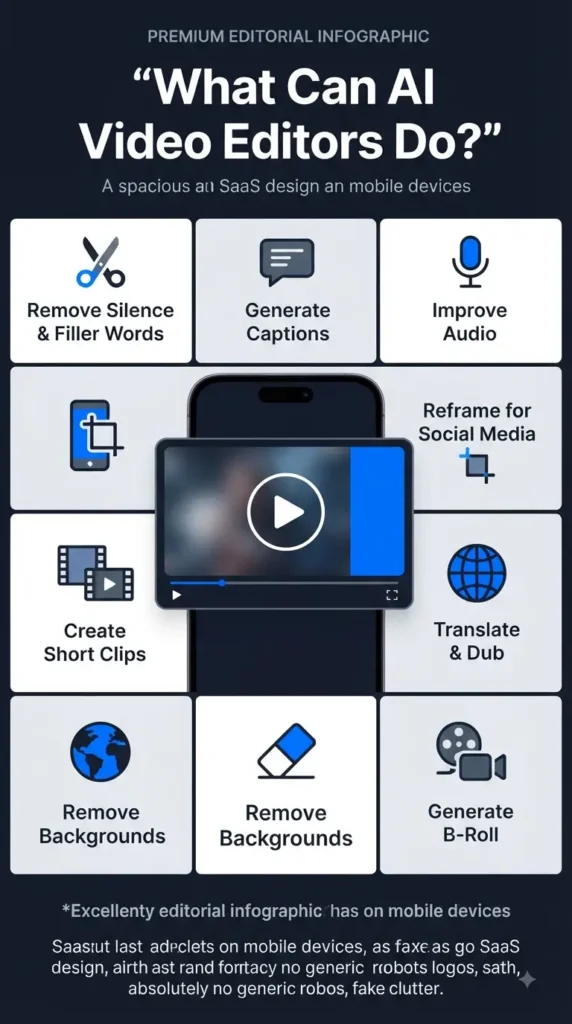
AI video editors can automate many repetitive editing tasks, helping creators spend less time on manual work. Depending on the tool, you can use AI to:
- Remove silence: Automatically detect and cut long pauses from recordings.
- Remove filler words: Clean up words such as “um,” “uh,” and repeated phrases.
- Generate captions: Create subtitles from spoken dialogue automatically.
- Improve audio: Reduce background noise and make speech clearer.
- Create short clips: Find useful sections of longer videos and turn them into Shorts or Reels.
- Reframe videos: Automatically adjust the framing for vertical, square, or other formats.
- Translate or dub videos: Create translated captions or, with supported tools, dubbed versions.
- Remove backgrounds: Separate people or objects from their original background.
- Generate B-roll: Create or suggest supporting visuals for parts of a video.
- Create video from text: Turn written prompts or scripts into video content in supported editors.
- Resize content for social platforms: Adapt videos for platforms such as YouTube, Instagram, and TikTok.
The important distinction: AI doesn’t make every edit automatically. Most creators still need to review the result and make final adjustments, especially when accuracy, timing, or creative control matters.
Are AI Video Editing Tools Worth It?
Yes—if they solve a repetitive part of your workflow. AI video editors are most valuable when they save you time without taking away the level of control you need.
They’re useful when:
- You edit videos frequently.
- You produce Shorts, Reels, or other social content.
- You want to turn long videos into multiple short clips.
- You spend too much time on captions, silence removal, audio cleanup, or other repetitive edits.
They’re less useful when:
- You need precise cinematic or creative control.
- Your projects require complex manual editing.
- AI-generated results need so much correction that doing the work manually is faster.
Bottom line: AI video editing tools are best viewed as workflow accelerators, not replacements for human editing. The right tool should remove repetitive work while still giving you enough control over the final video.
Best AI Image Generation Tools for Beginners, Bloggers & Creators
Frequently Asked Questions
There isn’t one best AI video editor for everyone. CapCut is a strong choice for short-form content, Descript for talking-head videos and podcasts, OpusClip for repurposing long videos, and Premiere Pro or DaVinci Resolve for advanced editing.
DaVinci Resolve is one of the strongest free options for advanced editing. For beginners and social videos, CapCut is an easier alternative.
Descript is a strong choice for talking-head videos, tutorials, and podcasts, while Premiere Pro is better for creators who need advanced professional editing control.
Yes. AI editors can automate tasks such as cutting pauses, removing filler words, generating captions, improving audio, and creating short clips. You should still review the results before publishing.
Yes. Tools such as Descript can detect and remove pauses or unnecessary sections, making spoken videos faster to edit.
Yes. Tools such as OpusClip can analyze long-form videos, identify potential highlights, reframe them for vertical formats, and add captions for short-form platforms.
CapCut and Canva are among the easiest options for beginners. CapCut is more focused on video editing, while Canva is useful if you also create graphics, thumbnails, presentations, and social posts.
Conclusion
The best AI video editing tools for content creators aren’t necessarily the ones with the most features. The right choice depends on what you create and how much control you need.
CapCut is a strong choice for Shorts and social videos, Descript works particularly well for podcasts and talking-head content, and OpusClip is useful for turning long videos into short clips. For professional editing, Premiere Pro and DaVinci Resolve offer much greater control, while Runway stands out for generative AI visuals.
If you’re choosing your first AI video editor, start with the workflow you use most often rather than the longest feature list. The best AI video editing tools for content creators are the ones that remove repetitive work while still giving you enough control to create the final video you want.
4 thoughts on “10 Best AI Video Editing Tools for Content Creators in 2026”