
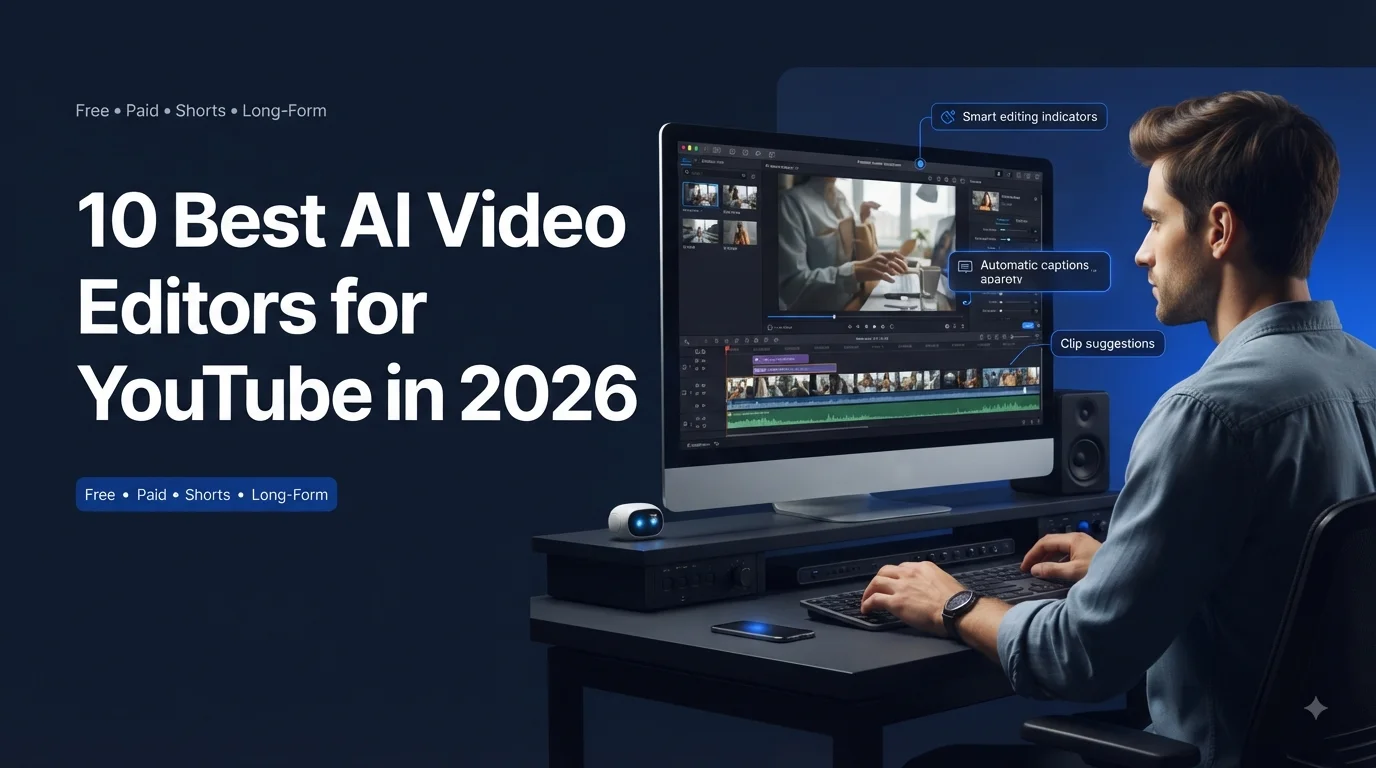
Choosing the best AI video editor for YouTube depends on the kind of videos you make. A tool that works well for talking-head videos may not be the best choice for Shorts, faceless channels, podcasts, or professional long-form editing.
The good news is that AI video editors can now automate many time-consuming tasks, including transcription, captions, silence removal, audio cleanup, clip creation, and some visual editing. But the tools differ significantly in how much control they give you and what type of YouTube workflow they are designed for.
In this guide, we compare 10 of the best AI video editors for YouTube in 2026, including free and paid options. You’ll see what each tool is best for, its key AI features, limitations, pricing, and which type of YouTube creator should choose it.
Quick answer: Descript is a strong choice for talking-head and podcast-style videos, CapCut is excellent for beginners and Shorts, DaVinci Resolve is the best free professional option, and Premiere Pro is better suited to advanced editing workflows.
Best AI Video Editors for YouTube at a Glance
| Tool | Best for | Free plan |
| Descript | Talking-head videos | Yes |
| CapCut | Shorts & beginners | Yes |
| Premiere Pro | Professional editing | No |
| DaVinci Resolve | Free professional editing | Yes |
| Filmora | Beginner editing | Yes |
| VEED | Browser editing | Yes |
| InVideo AI | Faceless videos | Yes |
| OpusClip | Long videos → Shorts | Yes |
| Runway | AI visuals | Yes |
| Gling | Rough cuts | Yes |
The “best” choice depends on your workflow. For example, OpusClip is designed primarily for repurposing long videos into short clips, while Runway is more focused on generative video and creative AI tools. They solve very different problems even though both can appear in searches for AI video tools.
ere Pro is better suited to advanced editing workflows.
Which AI Video Editor Should You Choose?
The best AI video editor for YouTube depends on your content type, editing experience, and how much work you want AI to automate. A beginner making Shorts may prefer CapCut, while a podcast creator may save more time with Descript. Professional creators who need advanced editing and color control may prefer Premiere Pro or DaVinci Resolve.
Choose Descript if you edit spoken content
Descript is a strong fit for tutorials, interviews, podcasts, commentary, and other videos where most of the content comes from someone speaking. Its transcript-based workflow lets you edit the video by working with the text rather than relying entirely on a traditional timeline.
Choose CapCut if you want speed
CapCut is a practical choice for beginners and creators focused on Shorts or fast-paced social content. Its AI-assisted editing, captions, background removal, effects, and mobile-friendly workflow make it easier to produce videos without learning a complex professional editor.
Choose Premiere Pro if you need professional control
Adobe Premiere Pro is better suited to creators who want a full professional editing environment. It offers advanced timeline editing, audio tools, captions, and integration with other Adobe applications, making it a strong choice for complex YouTube productions.
Choose DaVinci Resolve if you want professional tools for free
DaVinci Resolve is one of the strongest choices if you want professional editing without a monthly subscription. Its free version combines video editing, color grading, visual effects, and audio production in one application. The main trade-off is its steeper learning curve.
Choose InVideo AI if you create faceless videos
InVideo AI is better suited to creators who want to start with a script or prompt and build a narrated video using stock footage, AI-generated elements, voiceovers, and other assets. It is fundamentally different from a traditional editor because much of the workflow starts with creating the video rather than editing existing footage.
Choose OpusClip if you want more Shorts from existing videos
If you already publish long-form YouTube videos, OpusClip can help identify potential short clips and format them for vertical platforms. It makes more sense as a repurposing tool than as a replacement for a full video editor.
Choose Runway if you need AI-generated visuals
Runway is most useful when you want to create or transform visual content with generative AI. It can complement a traditional editor rather than replace one for a complete YouTube production workflow.
Choose Gling if your biggest problem is cleaning up footage
Gling is particularly useful for talking-head creators who spend too much time removing silence, filler words, mistakes, and bad takes. It can create a faster rough cut before you move the project into a more advanced editor.
10 Best Free AI Video Editors for YouTube
1. Descript — Best for Talking-Head YouTube Videos
Best for: Talking-head videos, podcasts, interviews, and tutorials
Price: From around $16/month when billed annually
Free plan: Yes
Descript is a strong AI video editor for YouTubers who create dialogue-heavy content. Its transcript-based workflow lets you edit spoken footage by changing the text, while AI features can help remove filler words, silences, and other repetitive editing tasks.
It works particularly well for podcasts, interviews, tutorials, and commentary where most of the video consists of people speaking. If you’re comparing different types of AI video editing tools for content creators, Descript stands out because its workflow is built around editing what people say rather than only working on a traditional timeline.
Pros
- Transcript-based editing
- AI filler and silence removal
- Automatic captions
Cons
- Not ideal for complex VFX or advanced color work
- Some AI features require paid plans or credits
Choose Descript if: You mainly create talking-head, podcast, interview, or tutorial videos.
Skip it if: You need advanced cinematic editing, extensive VFX, or professional color grading.
2. CapCut — Best for Beginners and YouTube Shorts
Best for: Beginners, YouTube Shorts, and fast-paced videos
Price: Pro is around $19.99/month or $179.99/year
Free plan: Yes
CapCut is a practical choice for beginners who want to create YouTube videos without learning a complicated professional editor. Its AI-assisted features include automatic captions, background removal, vocal isolation, effects, and fast editing tools.
It is particularly useful for Shorts because the workflow is designed around quick edits, vertical video, captions, and attention-grabbing effects. It can also handle simpler long-form YouTube projects, although professional creators may eventually want more advanced software.
If you want to explore other AI tools for YouTube creators, CapCut is one part of a broader creator workflow that can include research, scripting, editing, thumbnails, and repurposing.
Pros
- Easy for beginners
- Strong Shorts workflow
- Automatic captions and AI tools
Cons
- Less control than professional editors
- Some advanced features depend on the paid plan
Choose CapCut if: You want fast, beginner-friendly editing for Shorts and simple YouTube videos.
Skip it if: You need advanced color grading, VFX, or complex professional post-production.
3. Adobe Premiere Pro — Best for Professional YouTube Editing
Best for: Professional creators, long-form videos, and complex editing
Price: From around $22.99/month with an annual commitment
Free plan: No permanent free plan
Adobe Premiere Pro is designed for YouTubers who need detailed control over their editing workflow. It combines a professional timeline with AI-assisted tools for transcription, captions, audio enhancement, reframing, and other repetitive tasks.
If you want to compare it with other AI video editing tools for content creators, Premiere Pro stands out for its professional editing controls and integration with the wider Adobe ecosystem.
Pros
- Professional editing controls
- Powerful AI-assisted features
- Strong Adobe ecosystem
Cons
- Steeper learning curve
- Subscription required
Choose Premiere Pro if: You want professional control over complex YouTube productions.
Skip it if: You mainly create simple Shorts or want the easiest possible editor.
4. DaVinci Resolve — Best Free Professional Editor
Best for: Professional editing, color grading, VFX, and audio
Price: Free; Studio is around $295 one-time
Free plan: Yes
DaVinci Resolve is one of the strongest choices for YouTubers who want professional editing without a monthly subscription. Its free version combines video editing, color grading, visual effects, and audio production in one application.
For creators comparing professional AI video editing software, DaVinci Resolve stands out because you can start with a powerful free version and upgrade to Studio only when you need its advanced AI and professional features.
Pros
- Powerful free version
- Professional color, audio, and VFX tools
- Studio adds advanced AI features
Cons
- Steeper learning curve
- Some advanced AI features require Studio
Choose DaVinci Resolve if: You want professional editing capabilities without a monthly subscription.
Skip it if: You want a very simple editor for quick Shorts or basic videos.
5. Filmora — Best AI Video Editor for Beginners
Best for: Beginners who want simple editing with AI features
Price: Paid plans start at around $4.17/month on annual billing
Free plan: Yes, with limitations
Filmora is a good middle ground between simple editors such as CapCut and more advanced software such as Premiere Pro. Its interface is relatively easy to learn, while AI features can help with tasks such as background removal, auto reframing, and other editing workflows.
It is a practical option if you want more creative control than a basic mobile editor without taking on the learning curve of professional software.
Pros
- Beginner-friendly interface
- Useful built-in AI tools
- Large selection of effects and assets
Cons
- Free exports have limitations
- Advanced AI features may use credits
Choose Filmora if: You want an easy desktop editor with more features than a basic Shorts-focused app.
Skip it if: You want a completely free professional workflow or advanced cinematic control.
6. VEED — Best AI Video Editor for Browser-Based Editing
Best for: Creators who want to edit videos online
Price: Paid plans start around $12/month on annual billing
Free plan: Yes, with limitations
VEED is a browser-based AI video editor designed for creators who don’t want to install traditional desktop editing software. You can edit videos, create captions, clean up audio, translate content, and use AI-powered tools directly from your browser.
It is particularly useful for marketers, course creators, small teams, and YouTubers who need quick edits and collaboration rather than a complex professional post-production environment.
Pros
- Works in the browser
- Automatic captions and translation
- AI audio and video tools
- Useful collaboration features
Cons
- Less powerful than professional desktop editors
- Advanced AI usage depends on the plan
Choose VEED if: You want convenient AI-assisted editing without installing desktop software.
Skip it if: You need advanced color grading, VFX, or maximum timeline control.
7. InVideo AI — Best for Faceless YouTube Videos
Best for: Faceless channels, explainers, ads, and script-based videos
Price: Paid plans vary by AI credits and generation limits
Free plan: Yes, with limitations
InVideo AI is different from traditional editors because you can start with a prompt or script instead of existing footage. The platform can help build a narrated video using stock footage, AI-generated elements, voiceovers, and other media.
That makes it especially useful for faceless YouTube creators who want to produce videos without recording themselves. However, creators should still review the generated script, visuals, narration, and pacing before publishing.
If you’re comparing free AI video generators, InVideo AI is worth considering because its workflow focuses more on creating a complete video from an idea than manually editing footage.
Pros
- Prompt-to-video workflow
- Useful for faceless channels
- AI script and voiceover tools
- Stock media integration
Cons
- Heavy AI usage can become expensive
- Generated videos still need human review
Choose InVideo AI if: You want to create narrated, faceless videos from scripts or prompts.
Skip it if: You already have professionally recorded footage and need detailed timeline editing.
8. OpusClip — Best for Turning Long YouTube Videos Into Shorts
Best for: Repurposing long-form YouTube videos into Shorts
Price: Starts around $15/month
Free plan: Yes, with monthly limits
OpusClip is best viewed as an AI video repurposing tool rather than a complete replacement for a professional video editor. It analyzes longer videos and can identify potential short clips, add captions, reframe footage, and prepare content for vertical platforms.
This makes it particularly useful if you already publish long-form YouTube videos and want to get more content from the same recording.
Pros
- Automatic clip selection
- Captions and vertical formatting
- AI B-roll and repurposing features
- Useful long-form-to-Shorts workflow
Cons
- Not a full professional editor
- Results still need human review
Choose OpusClip if: You want to turn existing long-form videos into multiple Shorts quickly.
Skip it if: You need to build an entire YouTube video from scratch or perform detailed professional editing.
9. Runway — Best for AI-Generated Visuals
Best for: Generative video, creative effects, and experimental YouTube visuals
Price: Paid plans start around $12/month when billed annually
Free plan: Yes, with limited credits
Runway is different from traditional video editors because its biggest strength is generative AI. You can create or transform visual content using text and images, making it useful for B-roll, creative scenes, visual effects, and other elements that may be difficult to produce manually.
For YouTubers, Runway works best as part of a larger editing workflow rather than as the only editor. You can generate visual elements in Runway and then assemble the final video in an editor such as Premiere Pro or DaVinci Resolve.
Pros
- Powerful generative video features
- Useful for creative B-roll
- Text-to-video and image-to-video tools
- Good for experimental visuals
Cons
- Generative credits can be consumed quickly
- Not a replacement for a full professional editor
Choose Runway if: You need AI-generated visuals to make your YouTube videos more creative.
Skip it if: You simply need to cut footage, add captions, and export a finished video.
10. Gling — Best for Fast YouTube Rough Cuts
Best for: Talking-head videos, tutorials, and removing unwanted pauses and mistakes
Price: From around $10/month when billed annually
Free plan: Yes, with limitations
Gling is built specifically around one of the most repetitive parts of YouTube editing: cleaning up raw talking-head footage. Its AI can identify and remove silences, filler words, bad takes, and other unwanted sections before you move into a more detailed editing workflow.
That makes Gling especially useful for creators who record long videos but don’t want to spend hours making the first rough cut manually. Paid plans can also export projects for further editing in professional software.
Pros
- Fast AI rough cuts
- Removes filler words and silences
- Designed for YouTube-style talking-head content
- Can export to professional editors
Cons
- Not a complete professional editing suite
- Most useful for dialogue-heavy footage
Choose Gling if: You spend too much time cleaning up talking-head recordings.
Skip it if: You need a complete editor for color grading, VFX, and final production.
If you want to edit videos without paying for expensive software, check out our guide to free AI video editors.
AI Video Editor vs. AI Video Generator: What’s the Difference?
An AI video editor helps you edit footage you already have, while an AI video generator can create video content from a prompt, script, image, or other input.
| Feature | AI Video Editor | AI Video Generator |
| Starting point | Existing footage | Prompt, script, or image |
| Main purpose | Edit and improve videos | Create new video content |
| Best for | YouTubers with recorded footage | Faceless channels and generated content |
| Examples | Descript, Premiere Pro, DaVinci Resolve | InVideo AI, Runway |
| Typical AI features | Captions, cleanup, reframing | Script-to-video, text-to-video, AI visuals |
For example, if you record a 20-minute tutorial and want to remove mistakes, add captions, and improve the audio, you need an AI video editor.
If you give an AI tool a script and want it to create a narrated video with visuals, you’re looking for an AI video generator.
If you want to explore the second category, see our guide to free AI video generators.
The two categories can also work together. A creator might generate B-roll with Runway or create a first draft with InVideo AI, then finish the video in Premiere Pro, DaVinci Resolve, or another editor.
Which AI Video Editor Should You Choose?
The best AI video editor depends on the type of YouTube content you create.
- For beginners: Choose CapCut or Filmora.
- For talking-head videos: Choose Descript or Gling.
- For professional editing: Choose Adobe Premiere Pro.
- For free professional editing: Choose DaVinci Resolve.
- For browser-based editing: Choose VEED.
- For faceless videos: Choose InVideo AI.
- For turning long videos into Shorts: Choose OpusClip.
- For AI-generated visuals: Choose Runway.
If you’re unsure, start with the tool that matches your current bottleneck rather than choosing the software with the longest feature list. A beginner who needs faster Shorts editing has different needs from a creator producing a 30-minute documentary-style video.
How to Choose the Best AI Video Editor for YouTube
Before paying for an AI video editor, consider these five factors:
1. Your video format
A talking-head channel may benefit more from transcript editing and automatic cleanup, while a gaming, documentary, or cinematic channel may need a full professional timeline.
2. Your editing experience
Beginners can start with CapCut, Filmora, or VEED. More experienced editors may prefer Premiere Pro or DaVinci Resolve.
3. Which tasks you want AI to automate
Look for the specific AI features that solve your biggest problem. These might include automatic captions, filler-word removal, audio cleanup, clip selection, reframing, or AI-generated B-roll.
4. Your budget
A free editor can be enough for many creators. DaVinci Resolve is particularly notable because its free version provides professional editing capabilities, while paid tools may offer more specialized AI automation.
5. Your complete YouTube workflow
Don’t choose an editor in isolation. Consider what happens before and after editing—research, scripting, recording, thumbnails, Shorts, publishing, and content repurposing.
For a broader view of tools that can support different parts of the creator workflow, see our guide to AI tools for content creators.
Best AI Video Editors for Different YouTube Channel Types
The best AI video editor depends on the type of YouTube channel you run. A podcast channel has different editing needs from a gaming, faceless, or Shorts channel.
| YouTube channel type | Best tool | Why |
| Talking-head channel | Descript | Fast transcript-based editing and filler removal |
| Podcast channel | Descript | Dialogue editing, captions, and multi-speaker workflows |
| YouTube Shorts channel | CapCut | Fast vertical editing, captions, and effects |
| Gaming channel | DaVinci Resolve | Advanced timeline, audio, effects, and color controls |
| Faceless channel | InVideo AI | Script-to-video and AI voiceover workflow |
| Tutorial/education channel | Descript | Easy editing of explanations and screen recordings |
| Professional documentary channel | Premiere Pro | Advanced editing and professional workflow |
| Cinematic channel | DaVinci Resolve | Color grading, VFX, and professional finishing |
| Long-form → Shorts channel | OpusClip | Finds and repurposes clips automatically |
| AI-generated content channel | Runway | Generative video and visual creation |
| Beginner YouTube channel | CapCut | Easy learning curve and fast editing |
| Browser-based channel workflow | VEED | Online editing, captions, and collaboration |
Quick recommendations
If you run a talking-head channel: Start with Descript or Gling.
If you mainly publish Shorts: CapCut is the easiest starting point.
If you run a faceless channel: InVideo AI can help create videos from scripts, while Runway is useful when you need custom AI-generated visuals.
If you make professional long-form videos: Choose Premiere Pro or DaVinci Resolve.
If you turn long videos into Shorts: Choose OpusClip.
If you’re a beginner: Start with CapCut or Filmora rather than jumping straight into professional software.
The right choice is therefore less about finding one universally “best” editor and more about matching the tool to your YouTube channel format and editing workload.
Can AI Edit YouTube Videos Automatically?
Yes, AI can automate many parts of YouTube video editing, but it usually does not replace human editing completely.
AI video editors can automatically handle tasks such as:
- Removing silences, filler words, and unwanted sections
- Generating captions and subtitles
- Cleaning up background noise and improving audio
- Detecting interesting moments in long videos
- Creating Shorts from long-form videos
- Reframing videos for vertical formats
- Removing or replacing backgrounds
- Generating B-roll or visual elements
- Creating rough cuts from transcripts or scripts
For example, Gling can speed up the rough-cut stage for talking-head videos, while OpusClip can identify clips from longer videos for Shorts. Tools such as Descript can simplify transcript-based editing.
However, you should still review the final video yourself. AI can make incorrect cuts, misunderstand dialogue, select weak moments, or produce visuals that don’t fit the context.
The most effective approach is usually AI-assisted editing rather than fully automatic publishing:
Record → AI rough cut → Human review → Final edit → Thumbnail → Publish → Repurpose
This gives you the speed of automation while keeping control over quality, accuracy, storytelling, and your channel’s style.
Which AI Video Editor Is Best for YouTube?
There isn’t one best AI video editor for every YouTube channel. The right choice depends on your content format, editing experience, and how much automation you need.
| Tool | Best for | Free plan | Starting price* |
| CapCut | Beginners & Shorts | Yes | ~$9.99/mo |
| DaVinci Resolve | Professional editing | Yes | Free |
| Descript | Talking-head & podcasts | Yes | ~$16/mo |
| Premiere Pro | Advanced editing | No | ~$22.99/mo |
| Filmora | Easy desktop editing | Yes | ~$4.17/mo |
| VEED | Browser-based editing | Yes | ~$12/mo |
| InVideo AI | Faceless videos | Yes | Varies |
| OpusClip | Long videos → Shorts | Yes | ~$15/mo |
| Runway | AI-generated visuals | Yes | ~$12/mo |
| Gling | Fast rough cuts | Yes | ~$10/mo |
Prices can vary by billing cycle, region, plan, and promotions.
Best free AI video editors
- DaVinci Resolve: Best for professional editing without a subscription.
- CapCut: Best for beginners and YouTube Shorts.
- Descript: Best for talking-head and podcast-style videos.
- VEED: Best if you prefer browser-based editing.
Best paid options
- Premiere Pro: Best for professional YouTube production.
- Descript: Best for dialogue-heavy workflows.
- OpusClip: Best for turning long videos into Shorts.
- Runway: Best for AI-generated visual content.
Frequently Asked Questions (10 Best AI Video Editors for YouTube in 2026)
CapCut is the easiest starting point for many beginners because it combines a simple interface with AI-assisted editing, automatic captions, effects, and a free plan.
DaVinci Resolve is the strongest free option if you want professional editing capabilities. For simpler videos and Shorts, CapCut is easier to learn.
Yes. AI can automate tasks such as removing silences and filler words, generating captions, cleaning audio, finding clips, and reframing videos. However, human review is still important for storytelling, accuracy, and final quality.
CapCut is a strong choice for creating Shorts from scratch, while OpusClip is better when you want to turn existing long-form videos into multiple Shorts.
InVideo AI is a good option for creating narrated videos from scripts and prompts. Runway can also help when you need custom AI-generated visuals.
Not completely. AI can automate repetitive editing tasks and speed up production, but professional editors still provide creative decisions, storytelling, pacing, visual consistency, and quality control.
Final Verdict
The best AI video editors for YouTube depend on your channel and editing workflow. CapCut is a strong starting point for beginners and Shorts, DaVinci Resolve is the best free professional option, and Descript works especially well for talking-head and podcast content.
For advanced production, Premiere Pro offers more professional control, while InVideo AI, OpusClip, and Runway are better suited to specialized workflows such as faceless videos, Shorts repurposing, and AI-generated visuals.
Choose the tool that solves your biggest editing problem rather than simply choosing the one with the most AI features.
2 thoughts on “10 Best AI Video Editors for YouTube in 2026”