
Finding free AI video editors should not mean spending hours editing a video only to discover a watermark, export limit, or paywall at the end. The good news is that some free editors now offer useful AI features such as auto captions, silence removal, background removal, text-based editing, and smart video tools.
In this guide, I compare the best free AI video editors based on what actually matters: AI features, export quality, watermarks, free-plan limits, ease of use, and who each tool is best for.
Quick answer: If you want the easiest free option, start with CapCut. If you want professional editing without a watermark, DaVinci Resolve is the stronger choice. For Windows beginners, Clipchamp is one of the simplest options.
If you want to create videos from text instead of editing existing footage, our guide to best free AI video generators covers tools designed specifically for video generation.
Quick Summary: Which Free AI Video Editing Software Is Actually Free?
Not every tool marketed as a free AI video editor gives you the same thing. Some offer unlimited basic editing but restrict AI features, while others let you test AI video creation but add a watermark to exports.
Looking for more tools specifically for YouTube? See our guide to free AI tools for YouTube creators.
| Tool | Best For | Free Export | Watermark? |
| CapCut | Shorts & social videos | Up to 1080p | Usually no* |
| DaVinci Resolve | Professional editing | Up to 4K UHD | No |
| Clipchamp | Beginners & Windows | Up to 1080p | No |
| Descript | Talking-head videos | Up to 720p | No |
| InVideo AI | AI-assisted video creation | Limited | Yes |
| VEED | Quick online editing | Limited | Yes |
| Canva | Templates & simple videos | Up to 1080p | Depends on assets |
| OpusClip | Long videos to Shorts | Limited | Yes |
| Filmora | Beginner desktop editing | Limited | Yes |
| Runway | Creative AI video work | Limited credits | Depends on plan |
*CapCut’s free editor supports watermark-free exports, but Pro-only templates, effects, or assets can change the result.
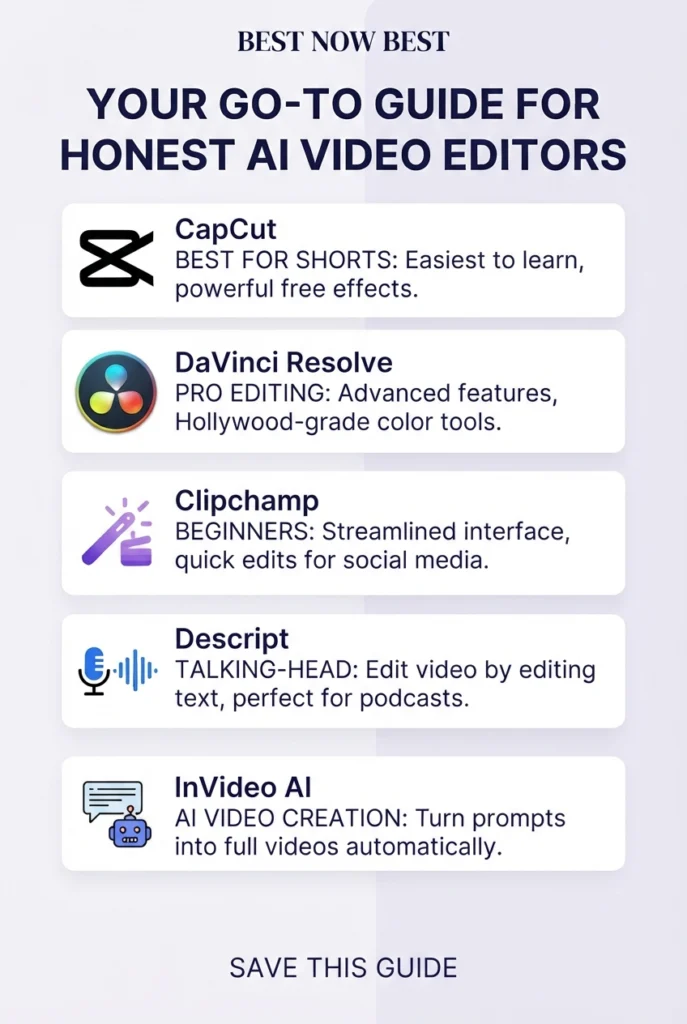
The best picks at a glance
- Best overall: CapCut
- Best professional free editor: DaVinci Resolve
- Best for Windows beginners: Clipchamp
- Best for talking-head content: Descript
- Best for AI-assisted video creation: InVideo AI
DaVinci Resolve’s free version supports editing, color correction, visual effects, motion graphics, and audio, with exports up to Ultra HD 3840×2160. Clipchamp’s free plan currently supports unlimited video exports up to 1080p and includes AI features such as subtitles, voiceovers, and silence removal without a watermark.
Important: If you specifically want to generate a video from a prompt, rather than edit existing footage, you may want a video generator instead. See our guide to best free AI video generators for those tools.
Top Free AI Video Editors Without Watermarks
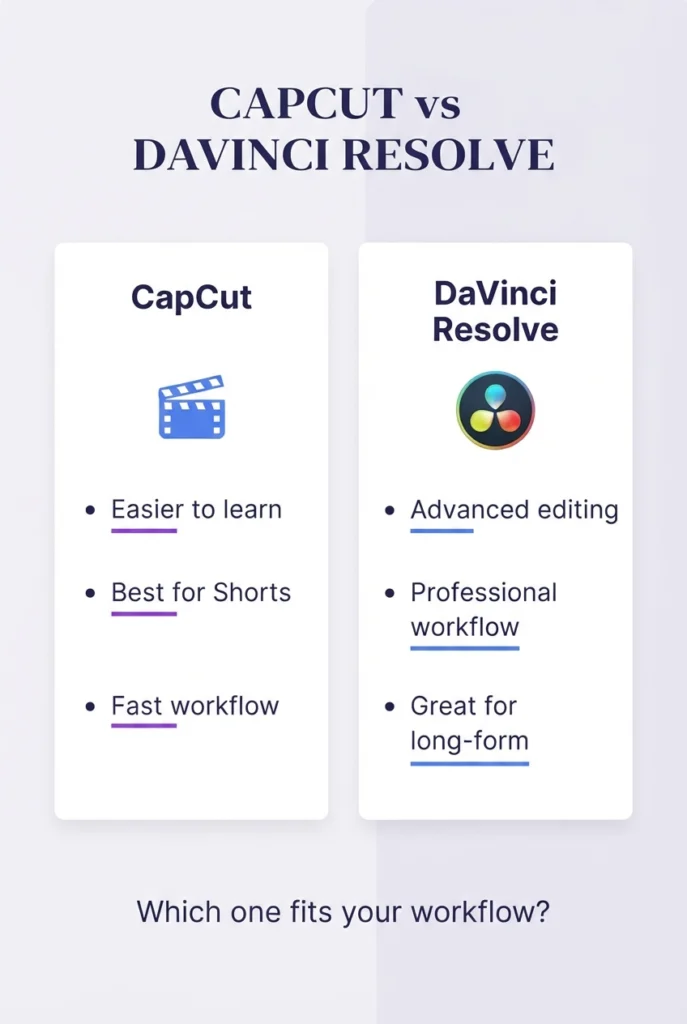
If watermark-free exports are your priority, focus on editors that let you complete normal projects with their free features rather than relying on premium templates or effects. The three strongest options in this group are CapCut, DaVinci Resolve, and Clipchamp, although their AI capabilities and limitations are different.
CapCut: Best Free AI Video Editor for Shorts
CapCut is one of the easiest free AI video editors for beginners, especially if you create TikTok videos, Instagram Reels, or YouTube Shorts. It combines a simple timeline with AI features such as auto captions, background removal, noise reduction, and other smart editing tools.
Best for: YouTube Shorts, Reels, TikTok, and fast social videos
AI features: Auto captions, background removal, AI enhancement, text-to-speech, smart editing
Free exports: Watermark-free exports are possible, but some templates and Pro assets can add restrictions.
Why choose CapCut: It has a much shorter learning curve than professional editors, so beginners can start editing almost immediately.
Watch out: Don’t assume every CapCut feature is free. Pro templates, effects, AI features, and some export settings can require an upgrade.
Best choice if: You want a fast, beginner-friendly editor for short-form content.
If you’re building a broader AI-powered YouTube workflow, see our list of AI tools for content creators.
DaVinci Resolve: Best Professional Free AI Video Editing Software
DaVinci Resolve is the better choice if you want professional video editing software for free rather than a simple social-media editor. Its free version combines editing, color correction, visual effects, motion graphics, and audio tools in one application.
If you want to compare DaVinci Resolve with other tools designed for creators, see our guide to AI video editing tools for content creators.
Best for: YouTube creators, filmmakers, and advanced editors
AI features: Smart editing and professional post-production tools
Free export: Supports high-quality exports without a watermark
Why choose DaVinci Resolve: You get a serious desktop editing workflow without paying for the basic version.
Watch out: Its interface is considerably more complex than CapCut, so beginners may need more time to learn it.
Best choice if: You want to build professional editing skills and don’t mind a steeper learning curve.
Clipchamp: Best Free Online AI Video Editor for Beginners
Clipchamp is particularly useful for beginners who want a simple free online AI video editor without installing complicated software. Its free plan includes AI features such as subtitles, voiceovers, and silence removal, and supports unlimited exports up to 1080p without a watermark.
Best for: Beginners, Windows users, simple YouTube videos
AI features: Auto subtitles, AI voiceovers, silence removal
Free export: Up to 1080p with no watermark.
Why choose Clipchamp: The interface is straightforward and works well for basic editing, screen recordings, presentations, and social content.
Best choice if: You want an easy editor and don’t need advanced professional features.
Specialized No-Cost Smart Video Editors
Not every free AI video editor is designed for traditional timeline editing. Some are better at text-based editing, automatic captions, silence removal, or turning a written prompt into a complete video.
The trade-off is usually a smaller number of AI credits, limited exports, or other free-plan restrictions. That makes these tools better for specific workflows than for unlimited editing.
Descript: Best for Talking-Head Videos and YouTube Shorts
Descript takes a different approach to video editing: it lets you edit a video by editing its transcript. This makes it especially useful for podcasts, tutorials, interviews, screen recordings, and talking-head YouTube videos.
Its AI tools can help with tasks such as removing filler words, improving audio, generating captions, and automating repetitive edits. Descript also has Underlord, its AI editing assistant, which can perform multiple editing tasks from instructions.
Best for: Talking-head videos, podcasts, tutorials, and YouTube Shorts
AI features: Transcription, captions, filler-word removal, AI editing assistance
Free plan: 1 media hour/month, 100 AI credits/month, and 720p watermark-free export.
Descript can be particularly useful for creators working with spoken content, while other AI tools for content creators can help with the wider production workflow.
Why choose Descript: If you dislike traditional timelines, editing your video like a document can be much faster.
Watch out: The free plan is limited, so frequent creators will likely need a paid plan.
Best choice if: Your videos contain a lot of spoken content and you want AI to handle repetitive editing work.
InVideo AI: Best Text-to-Video AI Free Tool
InVideo AI is more focused on creating videos from text prompts than traditional video editing. You can describe the video you want, and the platform can generate a script, select visuals, add voiceover, subtitles, music, and transitions.
If you want to explore more tools that create videos from prompts, see our comparison of the best free AI video generators.
Best for: Explainer videos, social content, faceless videos, and quick drafts
AI features: Script generation, AI visuals, voiceovers, subtitles, automated editing
Free plan: Available without a credit card, but it uses limited credits and free usage is restricted.
Why choose InVideo AI: It can turn an idea into a complete video much faster than building everything manually.
Watch out: Free usage is designed more for testing and light projects than unlimited production, and exports can have restrictions.
Best choice if: You want a text-to-video AI free tool that can create most of the first draft for you.
Which Free AI Video Editor Should You Choose?
The best choice depends on what you actually need. A free editor for YouTube Shorts is very different from one for long-form YouTube videos or professional editing.
If You mainly create YouTube videos, compare these options with our guide to the best AI video editors for YouTube.
| If you need… | Choose… |
| Fast Shorts and social videos | CapCut |
| Professional editing for free | DaVinci Resolve |
| Simple browser-based editing | Clipchamp |
| Talking-head or podcast editing | Descript |
| Prompt-to-video creation | InVideo AI |
Best free AI video editor without a watermark
If no watermark is your top priority, start with CapCut, DaVinci Resolve, or Clipchamp. Current comparisons consistently place these among the stronger free options for clean exports, although specific templates and AI features can have separate restrictions.
Best free AI video tool for YouTube Shorts
CapCut is the easiest starting point for Shorts because it combines quick editing with features such as auto captions, background removal, and automatic formatting for short-form content.
Best free AI video editor for beginners
Choose Clipchamp if you want a simpler browser-based workflow. It is particularly convenient for Windows users and supports AI-assisted features such as captions, voiceovers, and silence removal.
Best professional free option
Choose DaVinci Resolve if you’re willing to spend more time learning. Its free version offers a much deeper professional editing workflow than most beginner-focused AI editors.
What Should You Look for in a Free AI Video Editor?
A free AI video editor can look impressive until you reach the export button. Before choosing one, check these five things:
1. Watermark-free exports
If you plan to publish videos on YouTube or social media, check whether the free plan adds a watermark. CapCut, DaVinci Resolve, and Clipchamp are better options when clean exports are important.
2. Export quality
For most YouTube and social videos, 1080p is a good minimum. Some free editors offer higher resolutions, while others restrict free users to 720p.
3. AI features and limits
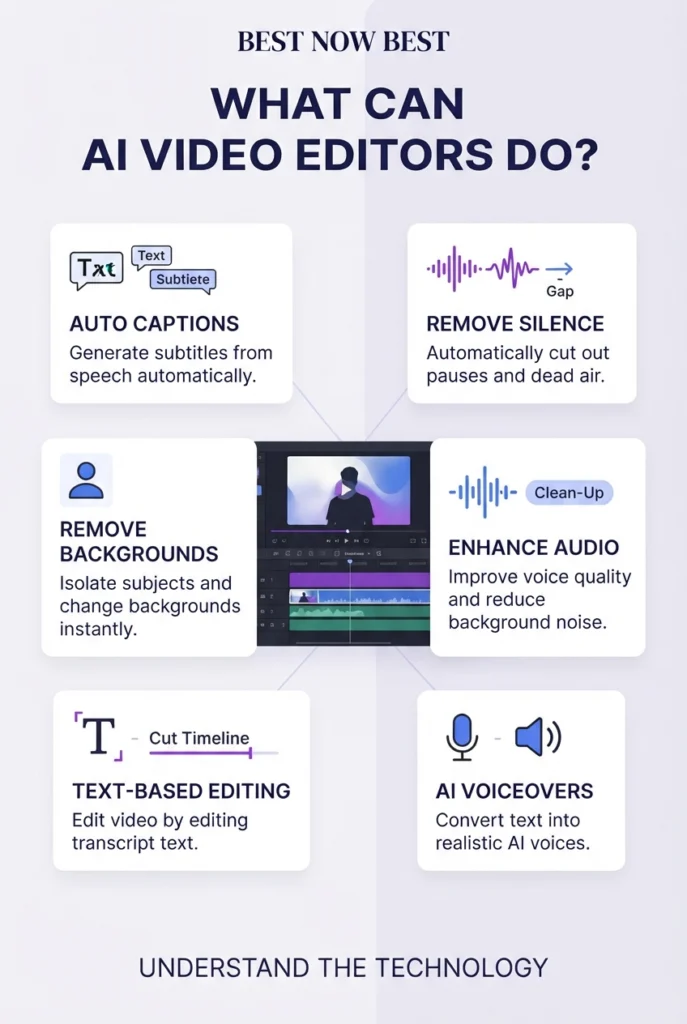
Don’t just look at the number of AI features. Check whether useful features such as auto captions, silence removal, background removal, AI voiceovers, or text-based editing are actually included in the free plan.
4. Ease of use
A professional editor can offer more control but take longer to learn. Beginners may prefer a simpler tool such as CapCut or Clipchamp, while experienced editors may get more value from DaVinci Resolve.
5. Your type of content
Choose the editor based on your workflow:
- YouTube Shorts: CapCut
- Professional videos: DaVinci Resolve
- Beginner editing: Clipchamp
- Talking-head videos: Descript
- Text-to-video creation: InVideo AI
If you’re building a complete video workflow rather than just editing footage, you can also explore our guide to AI video editing tools for content creators.
Free AI Video Editors Without Watermark: What Should You Choose?
If a watermark is your biggest concern, don’t judge a tool only by its “free” label. Some editors offer free editing but restrict certain templates, AI features, or exports.
For clean, watermark-free videos, these are the strongest options from our list:
- DaVinci Resolve: Best for professional editing with no watermark.
- Clipchamp: Best for beginners who want simple 1080p exports.
- CapCut: Best for Shorts and social videos, although some Pro assets have restrictions.
- Descript: Useful for talking-head content, but its free plan has usage and export limitations.
- InVideo AI: Better for AI-generated videos, but the free tier has more restrictions.
Quick recommendation
If your priority is professional videos without a watermark, choose DaVinci Resolve.
If you want the easiest option for Shorts and social media, choose CapCut.
If you’re a beginner looking for a simple browser-based editor, Clipchamp is the better starting point.
For more YouTube-focused options, see our guide to best AI video editors for YouTube.
Which Free AI Video Editor Has Auto Captions?
If you need automatic subtitles, several of the editors in this guide can save you from manually transcribing your videos.
- CapCut: Best for quick auto captions on Shorts and social videos.
- Clipchamp: Includes AI-powered automatic subtitles and is easy for beginners.
- Descript: Strong choice for spoken-content creators because it combines transcription with text-based editing.
- InVideo AI: Can automatically add subtitles when generating videos from a script.
Which one should you choose?
For Shorts and social media, choose CapCut.
For YouTube talking-head videos and podcasts, Descript is the stronger option because your transcript becomes part of the editing workflow.
For a simple browser-based option, Clipchamp is a good choice.
If you create content specifically for YouTube, you can also compare these tools with our guide to free AI tools for YouTube creators.
Free AI Video Editors for YouTube Shorts
If you’re specifically looking for a free AI video tool for YouTube Shorts, prioritize fast editing, automatic captions, vertical video support, and features that reduce repetitive work.
Best choices for Shorts
CapCut is the strongest choice for most beginners. It makes it easy to create vertical videos and use AI-assisted features such as automatic captions and background removal.
Descript is better when your Shorts come from longer talking-head videos, podcasts, or interviews. Its transcript-based editing can help you quickly find and remove unwanted sections before turning the content into short clips.
Clipchamp is a good option if you want a simpler browser-based workflow for basic Shorts and social videos.
Which one should you choose?
- Fastest Shorts workflow: CapCut
- Turn long talking videos into clips: Descript
- Simple beginner editing: Clipchamp
If you’re building a larger YouTube workflow, you can also explore our guide to free AI tools for YouTube creators.
Frequently Asked Questions
DaVinci Resolve and Clipchamp are strong choices if watermark-free exports are your priority. CapCut can also produce watermark-free exports when you use eligible features and assets. However, free export limits and Pro-only templates can vary, so check the export settings before finishing your project.
CapCut is the best overall choice for most beginners creating YouTube Shorts because it combines quick editing with features such as auto captions, background removal, and other AI-assisted tools. If you regularly turn long-form videos into Shorts, consider a dedicated AI clipping tool instead.
Yes. Descript and Clipchamp can help automate parts of the cleanup process, including removing unwanted pauses and improving spoken-content workflows. Descript is particularly useful for talking-head videos because you can edit the video through its transcript instead of working entirely on a traditional timeline.
CapCut, Clipchamp, and Descript all offer automatic captioning features. CapCut is particularly convenient for Shorts and social videos, while Descript is better suited to podcasts, interviews, and talking-head content. Always check the current free-plan limits if you need captions for a large number of videos.
Usually, yes—but it depends on the tool’s current terms of service and the assets you use. Free editing software may allow monetized videos, while individual templates, stock footage, music, AI-generated assets, or free-tier AI generations can have separate licensing restrictions. Check the tool’s official licensing terms before using content commercially.
Clipchamp is one of the easiest options for beginners who want a simple browser-based workflow. Canva is another good choice if you prefer templates and drag-and-drop editing. For short-form videos, CapCut is also worth considering if its workflow fits your needs.
Bottom line: Don’t choose a free AI video editor only because it advertises the most AI features. Check watermarks, export quality, AI usage limits, and commercial-use terms before committing to a tool.
Conclusion: Which Free AI Video Editor Should You Choose?
Finding the right free AI video editor comes down to your workflow, not the number of AI features a tool advertises.
Our top picks:
- For Shorts and social media: CapCut — Best for fast editing, auto captions, and short-form content.
- For professional editing: DaVinci Resolve — Best for creators who want advanced editing and color tools without paying for the basic version.
- For beginners: Clipchamp — A simple choice for browser-based editing and quick 1080p projects.
- For talking-head videos: Descript — Excellent for editing podcasts, interviews, and videos through a transcript.
- For AI-generated videos: InVideo AI — Best when you want AI to turn a script or idea into a video draft.
You don’t need to pay for expensive software to start creating. Try the free editor that matches your content, check its watermark, export quality, AI limits, and licensing terms, and upgrade only when the free plan no longer meets your needs.
For most beginners, start with CapCut. For professional editing, choose DaVinci Resolve.
2 thoughts on “Best Free AI Video Editors in 2026 (No Hidden Watermarks)”