
Affiliate disclosure: Some links below are affiliate links. If you sign up through them, I may earn a commission at no extra cost to you. I only recommend tools I use in my own workflows.
Your Facebook leads are going cold while you check your inbox. I fixed this with one Make scenario that pushes every new lead into GoHighLevel in seconds and starts follow-up automatically. Follow the steps below, then grab my free blueprint at the end so you can skip the build.
Quick summary
- Time: About 20 minutes
- Difficulty: Beginner
- Result: Every Facebook lead becomes a GHL contact, gets a tag, and receives a follow-up message
- Prerequisites: A Facebook Page with an active Lead Ad form, admin access to that Page, a Make account, and a GoHighLevel sub-account
What do I need before I start?
You need three things. A Facebook Page with a lead form, a Make account (the free plan works for testing), and a GoHighLevel account with a sub-account for your client or business.
Make also needs permission to read your leads. Make sure your Facebook user is a Page admin before you connect.
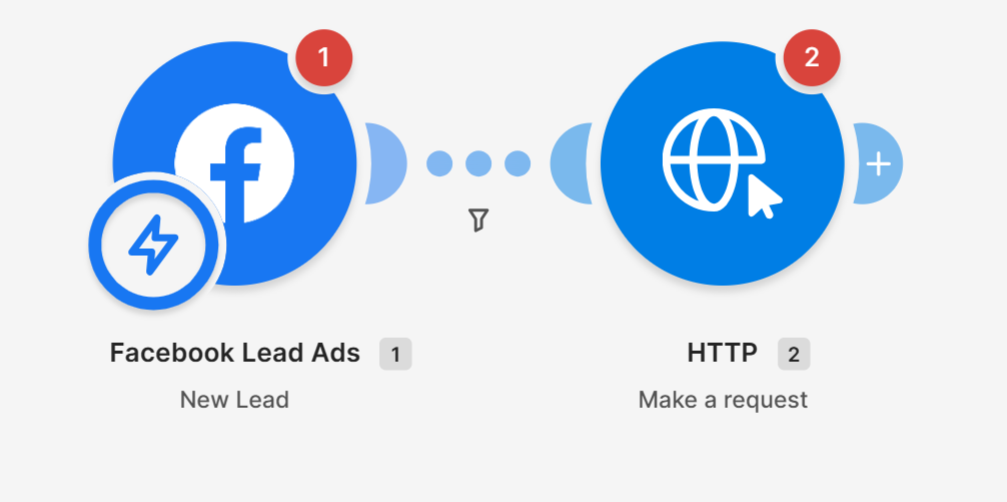
How do I connect Facebook Lead Ads to GoHighLevel using Make?
Here is my exact build order. I start in GoHighLevel so I have the webhook URL ready.
Step 1: Create the webhook trigger in GoHighLevel
- Open your sub-account and go to Automation > Workflows.
- Click Create Workflow and choose Start from Scratch.
- Click Add New Workflow Trigger and search for Inbound Webhook.
- Copy the Webhook URL. You will paste it into Make in Step 5.
- Name the workflow something clear, like “FB Lead – Make Intake”.
Do not publish yet. We need a sample lead first.
Step 2: Create a new scenario in Make
- Log in to Make and click Create a new scenario.
- Click the big + circle.
- Search for Facebook Lead Ads and choose Watch New Leads.
Step 3: Connect your Facebook Page and form
- Click Add next to Connection and log in with Facebook.
- Approve the permissions Make asks for.
- Select your Page and your Form.
- Click OK.
If your form or Page does not appear, jump to the troubleshooting section below.
Step 4: Pull in a sample lead
- Click Run once at the bottom left.
- Submit a test lead using Facebook’s Lead Ads Testing Tool.
- Wait for the module to show a bubble with the lead’s data.
Click the bubble. You should see name, email and phone fields. I always check the phone format here, because it affects SMS later.
Step 5: Send the lead to GoHighLevel
- Click the + after your Facebook module.
- Search for HTTP and choose Make a request.
- Paste the GoHighLevel webhook URL into the URL field.
- Set Method to POST.
- Set Body type to Raw and Content type to JSON (application/json).
- Paste this into Request content, then map each value from the Facebook module:
{
  "first_name": "{{Full name from Facebook}}",
  "email": "{{Email from Facebook}}",
  "phone": "{{Phone number from Facebook}}",
  "source": "Facebook Lead Ads"
}- Click OK, then click Run once again and submit another test lead.
The mapped values are the ones you click from the pop-up list inside Make. Do not type the curly braces by hand.
Step 6: Build the follow-up in GoHighLevel
- Go back to your workflow and click the Inbound Webhook trigger.
- Under Mapping Reference, select the sample request that just arrived.
- Click Save Trigger.
- Click + and add Create/Update Contact. Map first name, email and phone from the webhook data.
- Add an Add Tag action. I use “fb-lead-new”.
- Add a Send SMS or Send Email action with a short, personal first message.
- Toggle the workflow to Publish and click Save.
Keep the first message under two sentences. Ask one question the lead can answer in one word.
Step 7: Turn on the scenario and test live
- In Make, switch Scheduling to ON at the bottom left.
- Submit one more test lead through the Lead Ads Testing Tool.
- Check Contacts in GoHighLevel. Your test lead should appear with the tag.
- Check the workflow’s Execution Logs to confirm the message went out.
If you see the contact and the message, you are done.
Why aren’t my Facebook leads showing up in GoHighLevel?
These are the four fixes I use most.
- Page not listed in Make: Your Facebook user needs admin access on the Page. Reconnect in Make and tick every permission box.
- Leads arrive in Make but not in GHL: Open the webhook trigger in GoHighLevel and re-select the sample request. An old mapping is the usual cause.
- Contact created with no phone number: Check the phone field in Make’s output. Some forms return it in a different field name, so remap it.
- SMS not sending in the US: Texting needs carrier registration (A2P/10DLC) in your GHL account. Send an email first while you wait for approval.
Tool labels and menus change over time. If a button name differs from mine, look for the closest match.
Frequently asked questions
Yes. GoHighLevel has its own Facebook integration for lead forms in its settings. I use Make when I need extra logic, like filtering leads or sending data to other apps too.
Usually yes for testing and low lead volume. Make limits monthly usage on free plans, so check current limits before you run a busy campaign.
It depends on your trigger and plan settings. In my setup, leads usually arrive within minutes, and sometimes faster. Run a live test to confirm your timing.
The webhook mapping is usually the cause. Re-select the sample request in the trigger and make sure email or phone is present in the payload.